Now tracking Claude & Codex usage

Know your limits before they hit.

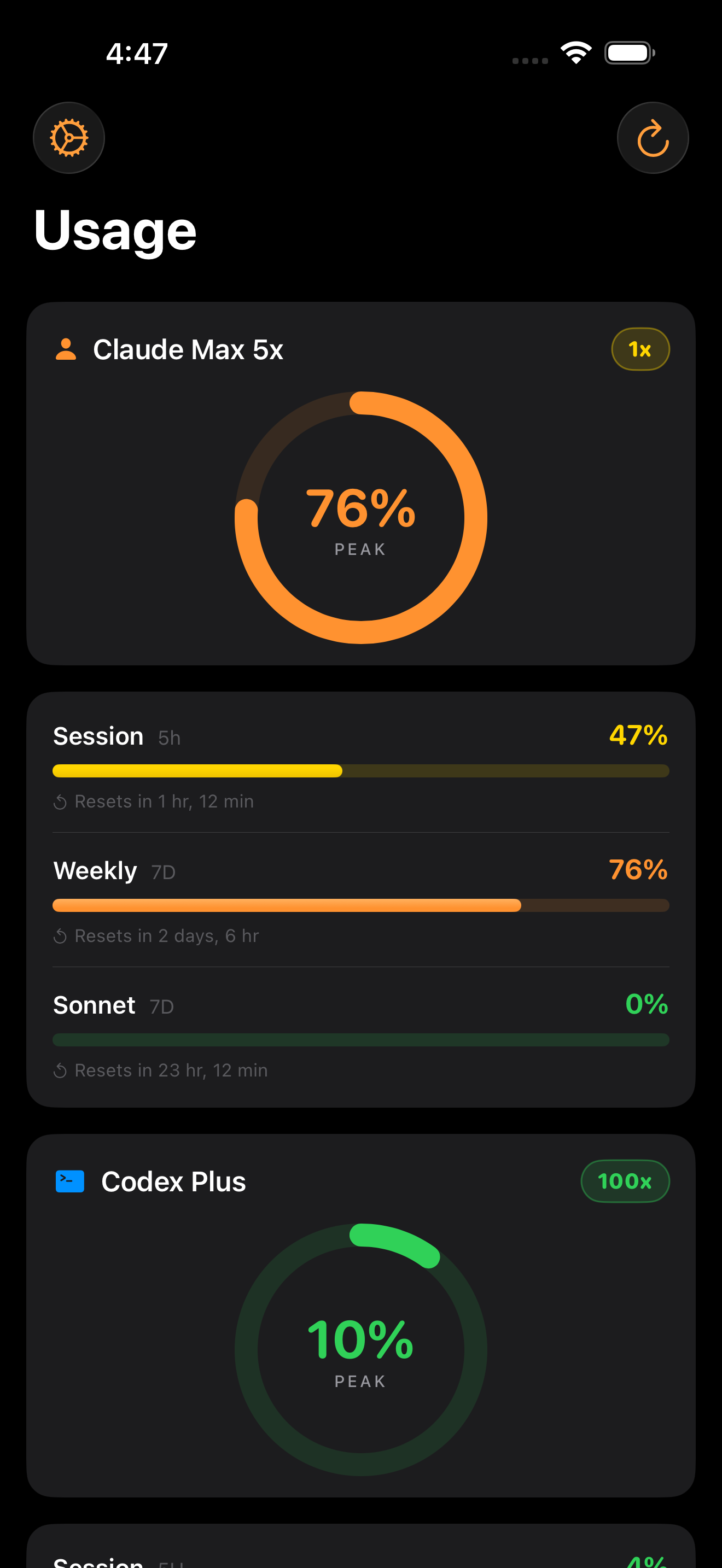
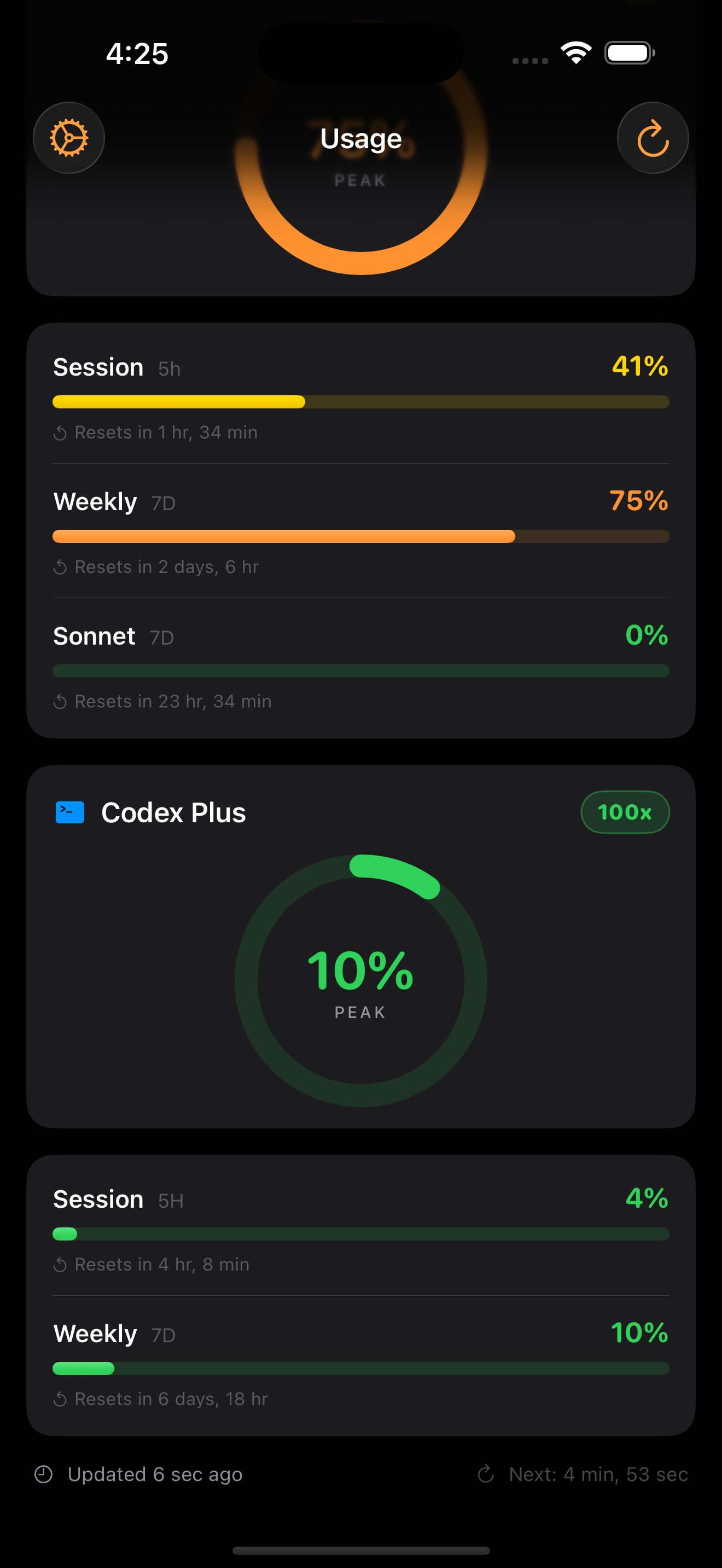
Real-time Claude AI usage tracking delivered to your iPhone, iPad, Mac, Apple Watch, TV, and Vision Pro through Live Activities, widgets, and native apps.

Install Client See It In Action

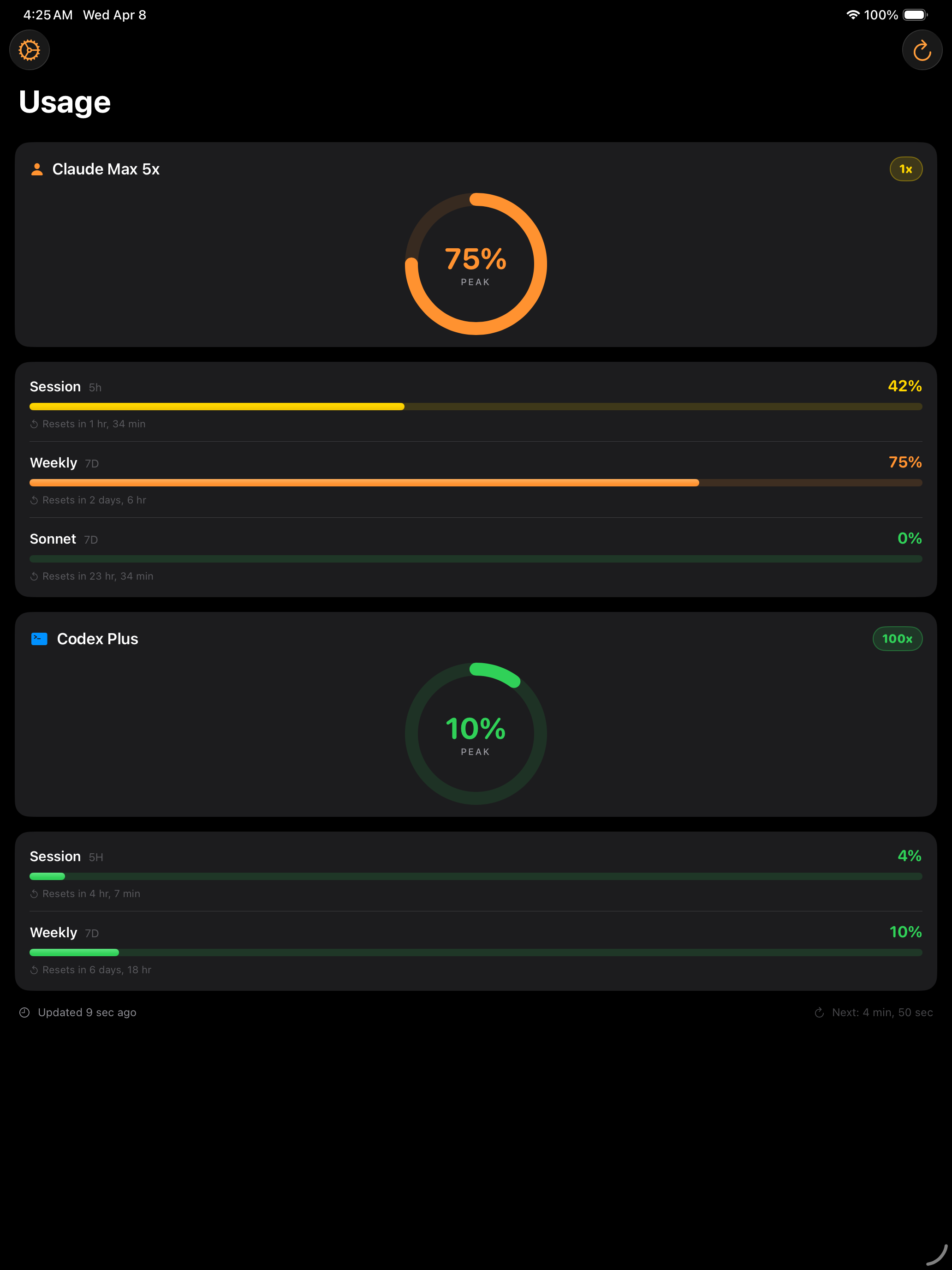
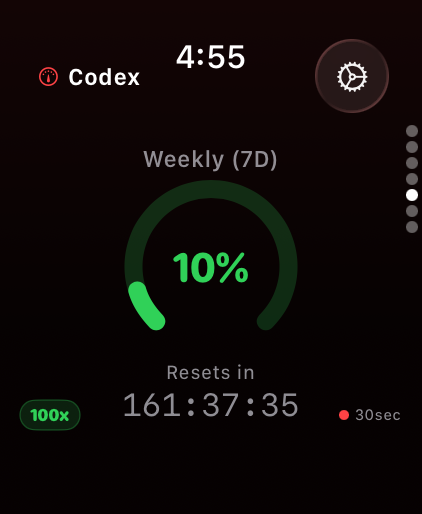
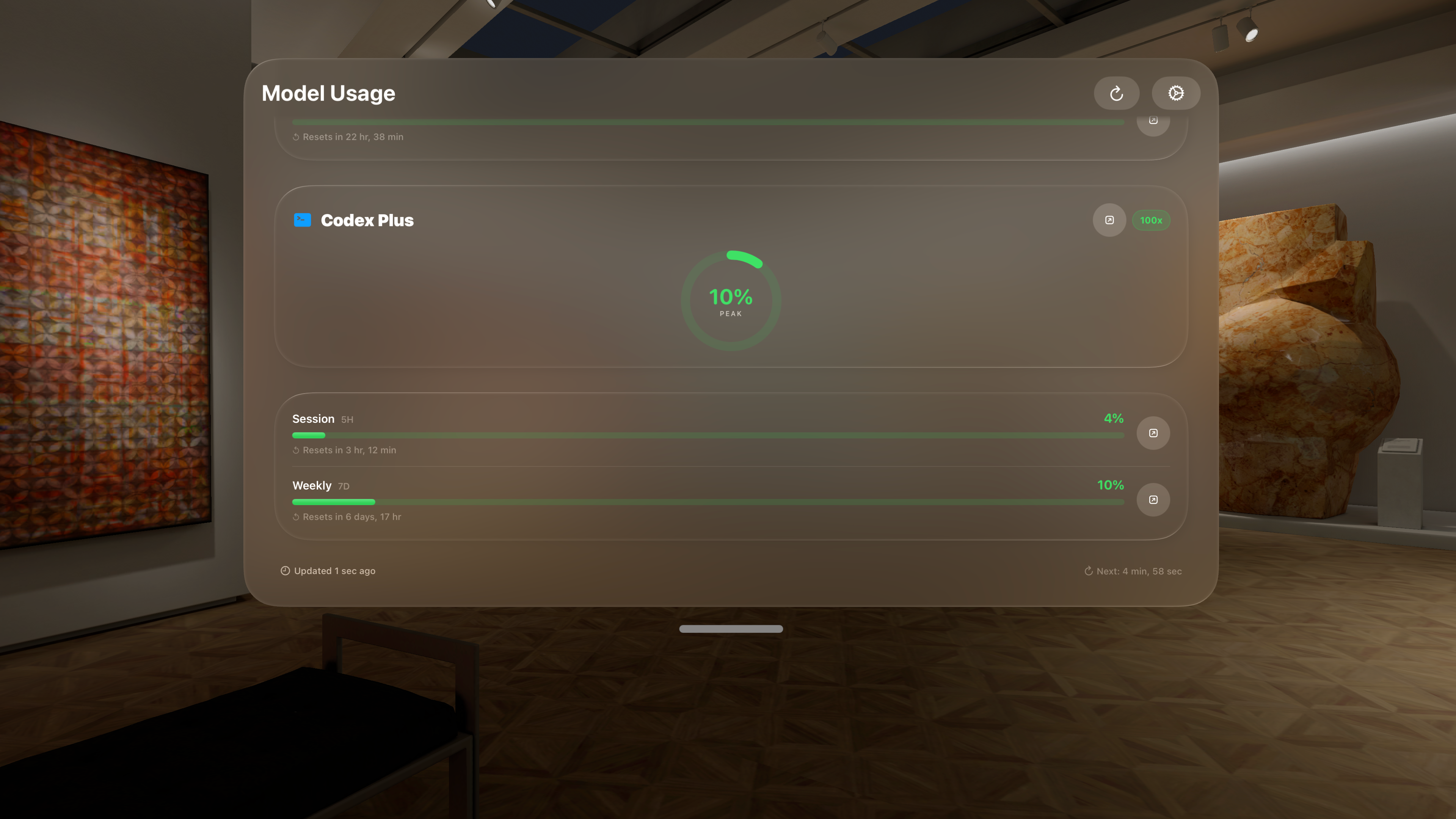
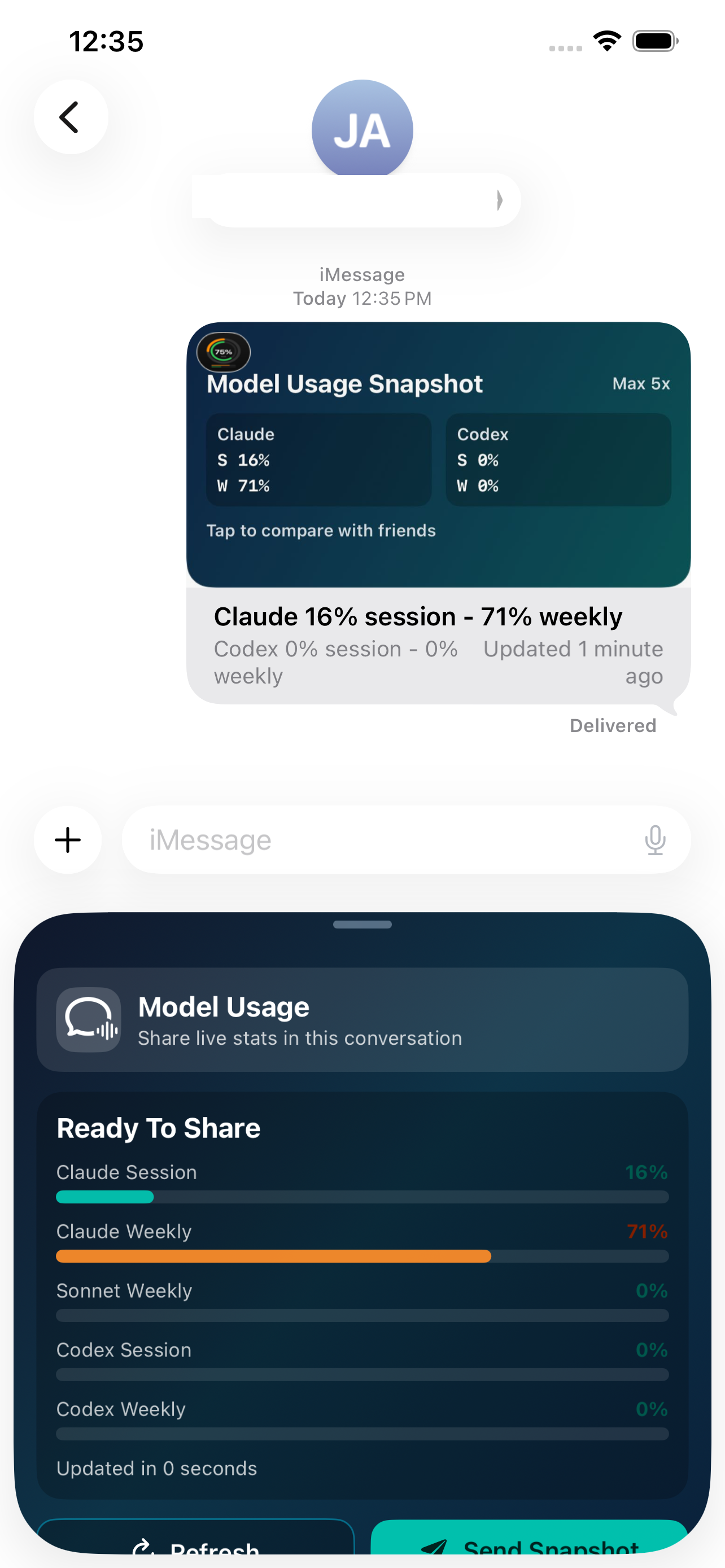
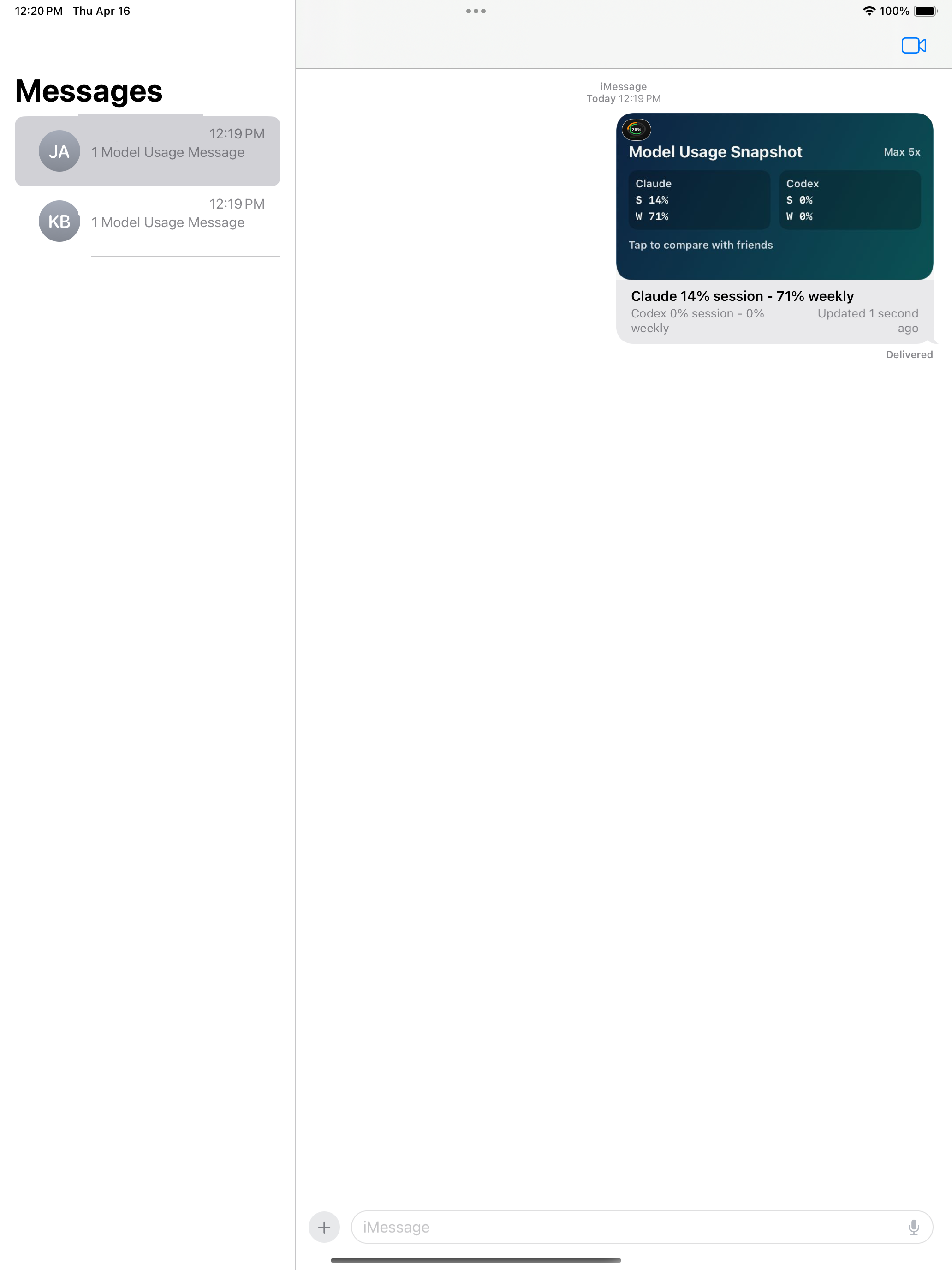
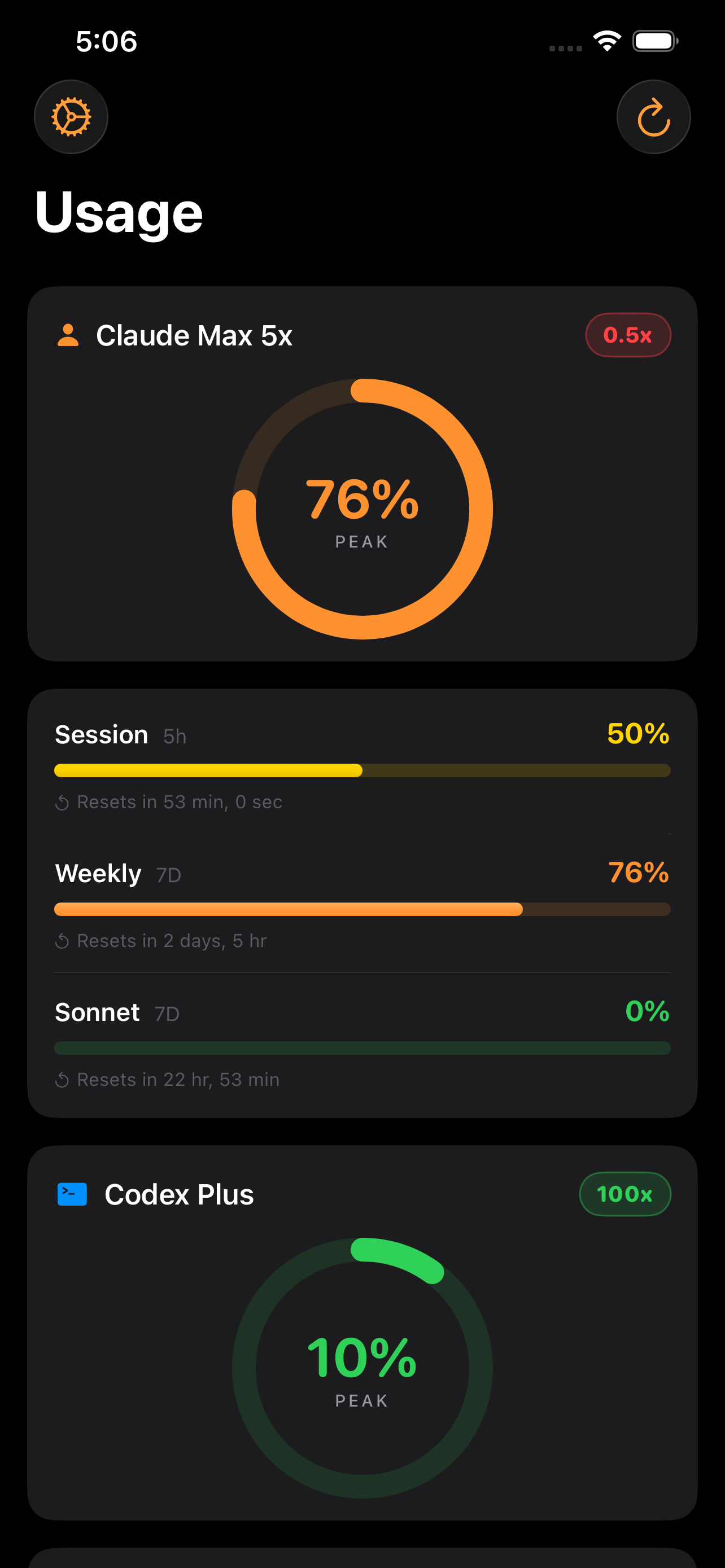
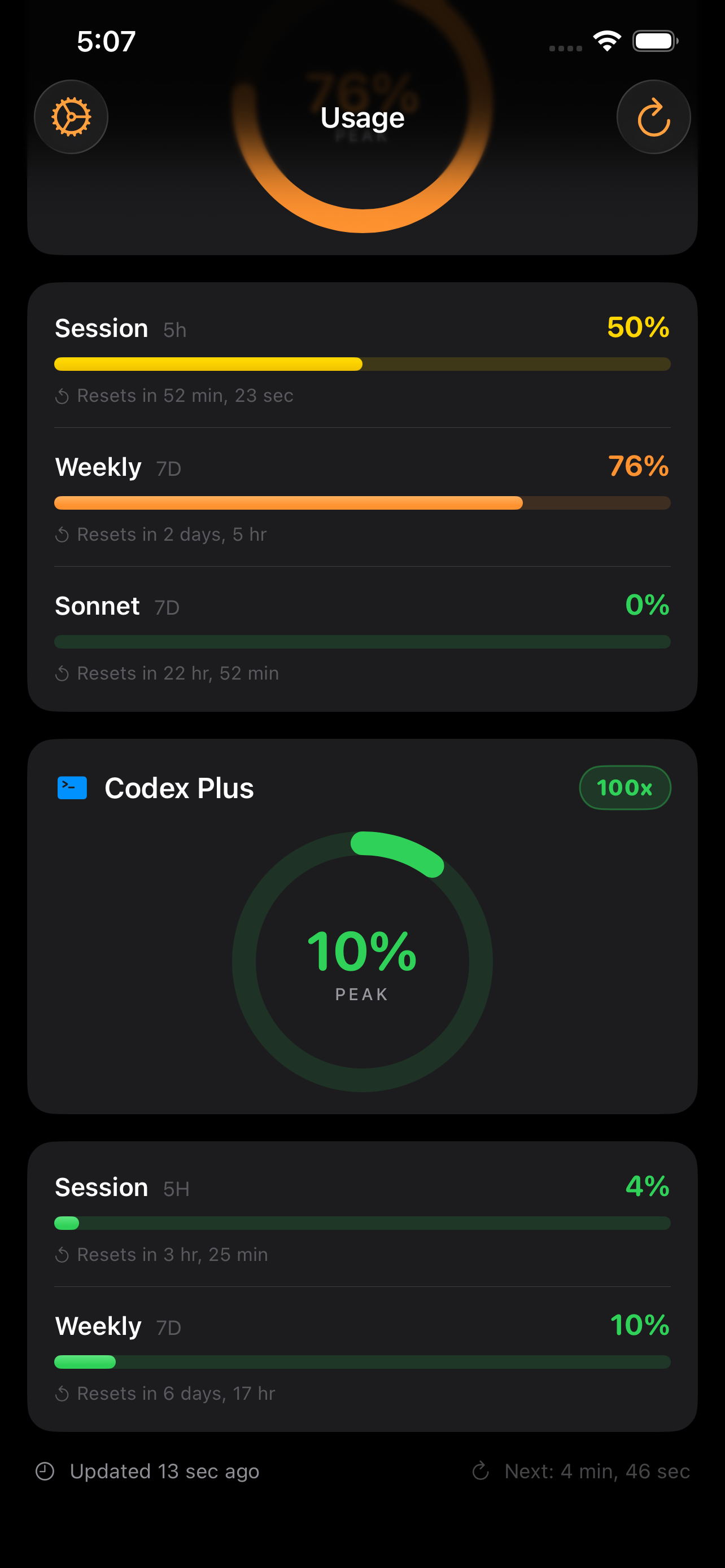
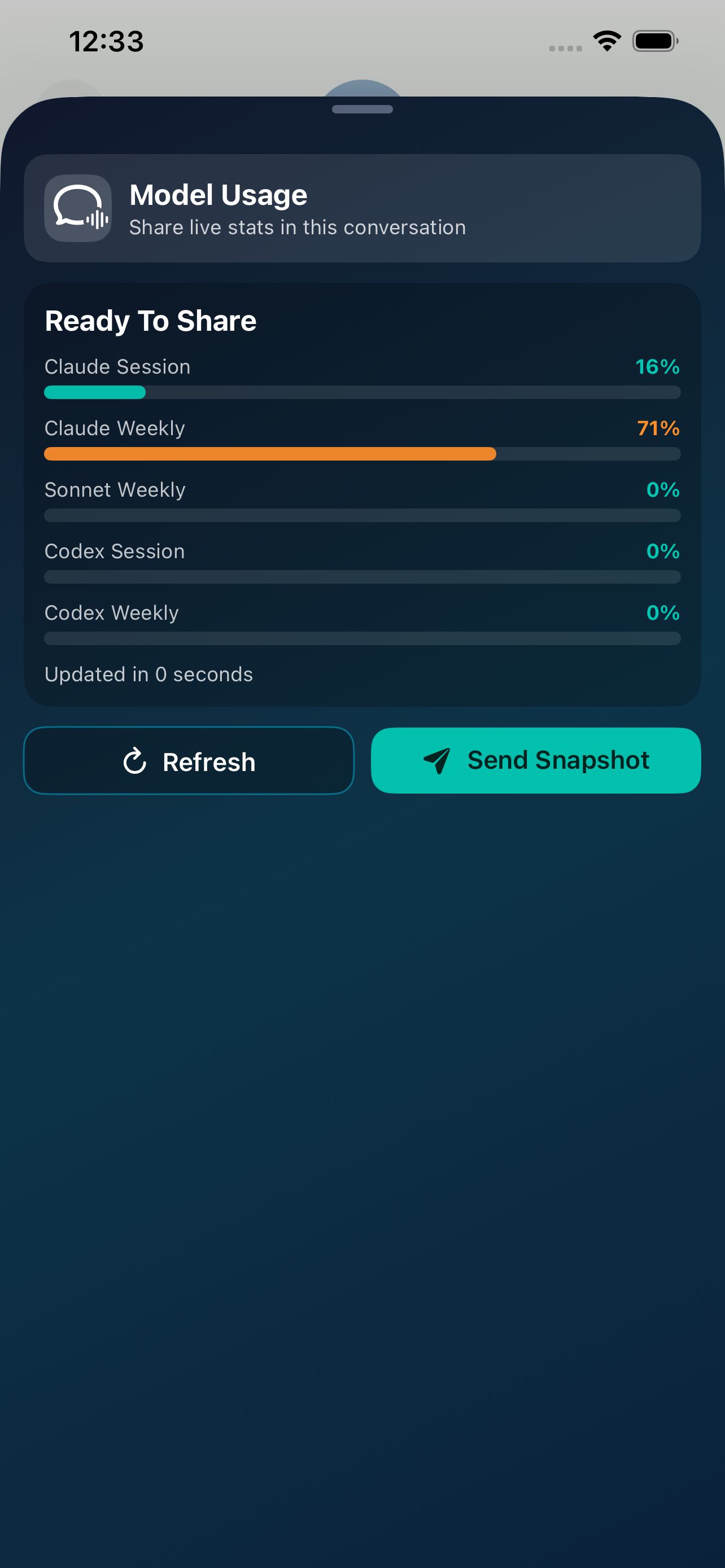
View Model Usage Rates in real time.

All iPhone screenshots.
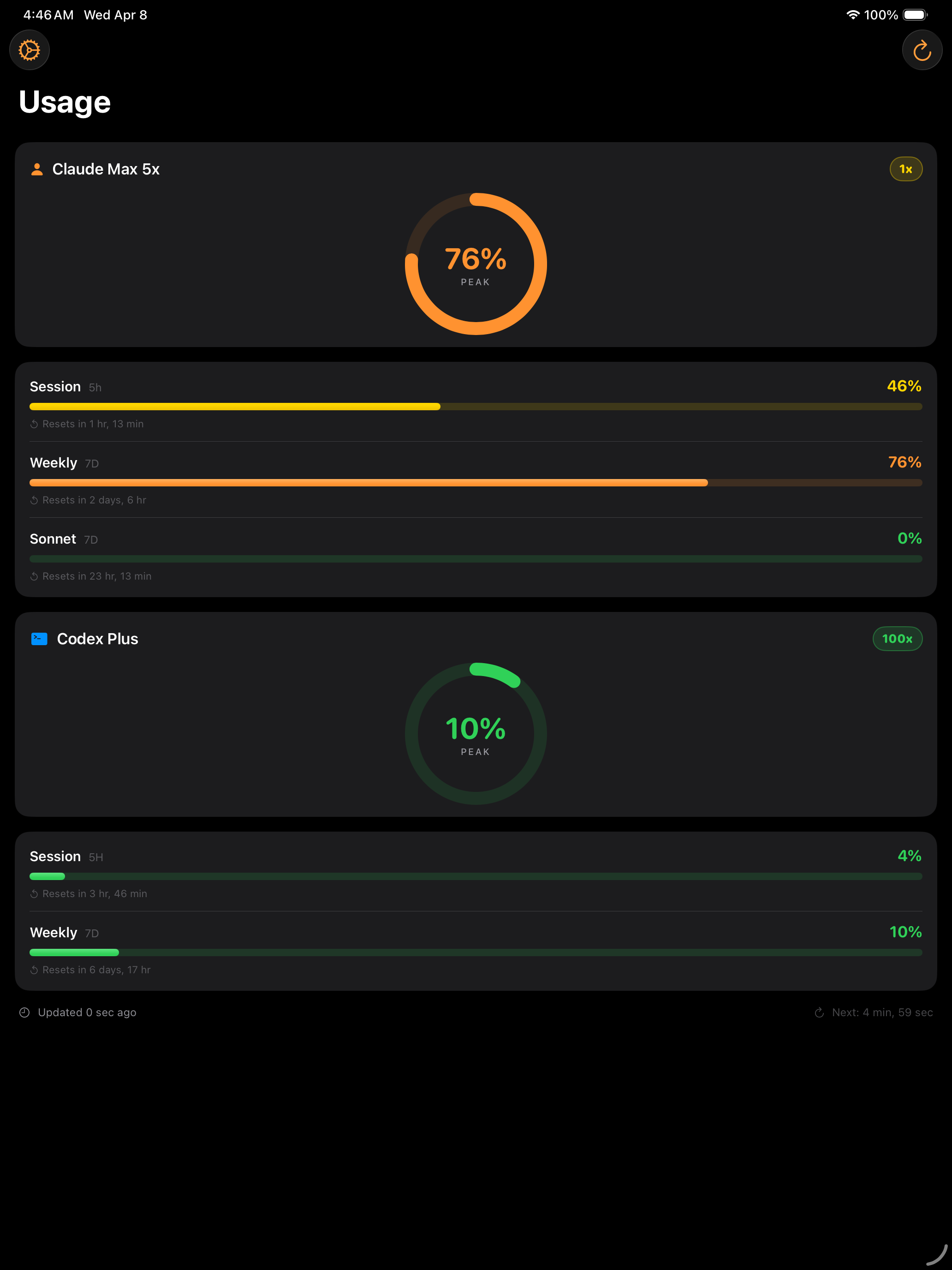
All iPad screenshots.
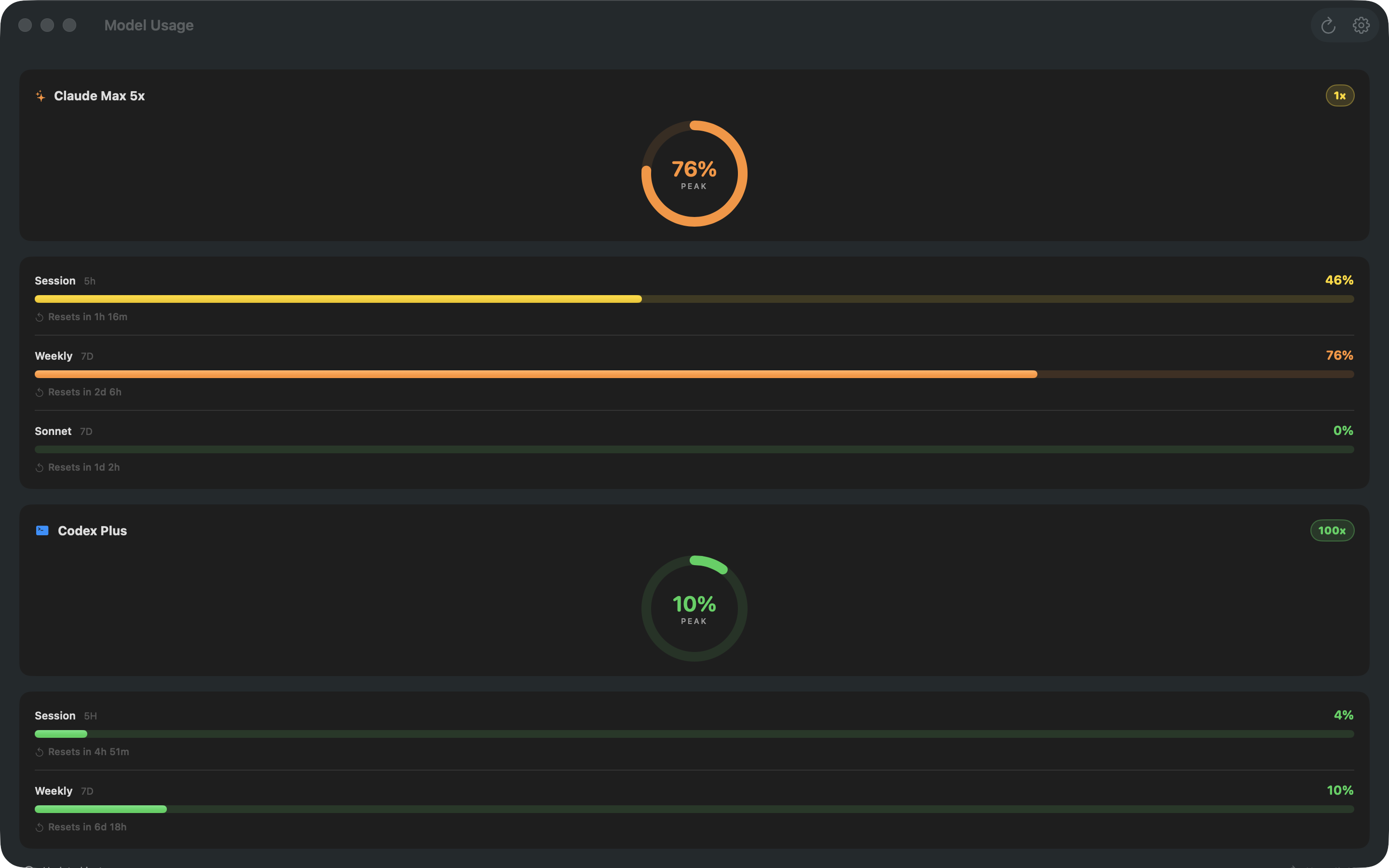
All macOS screenshots.
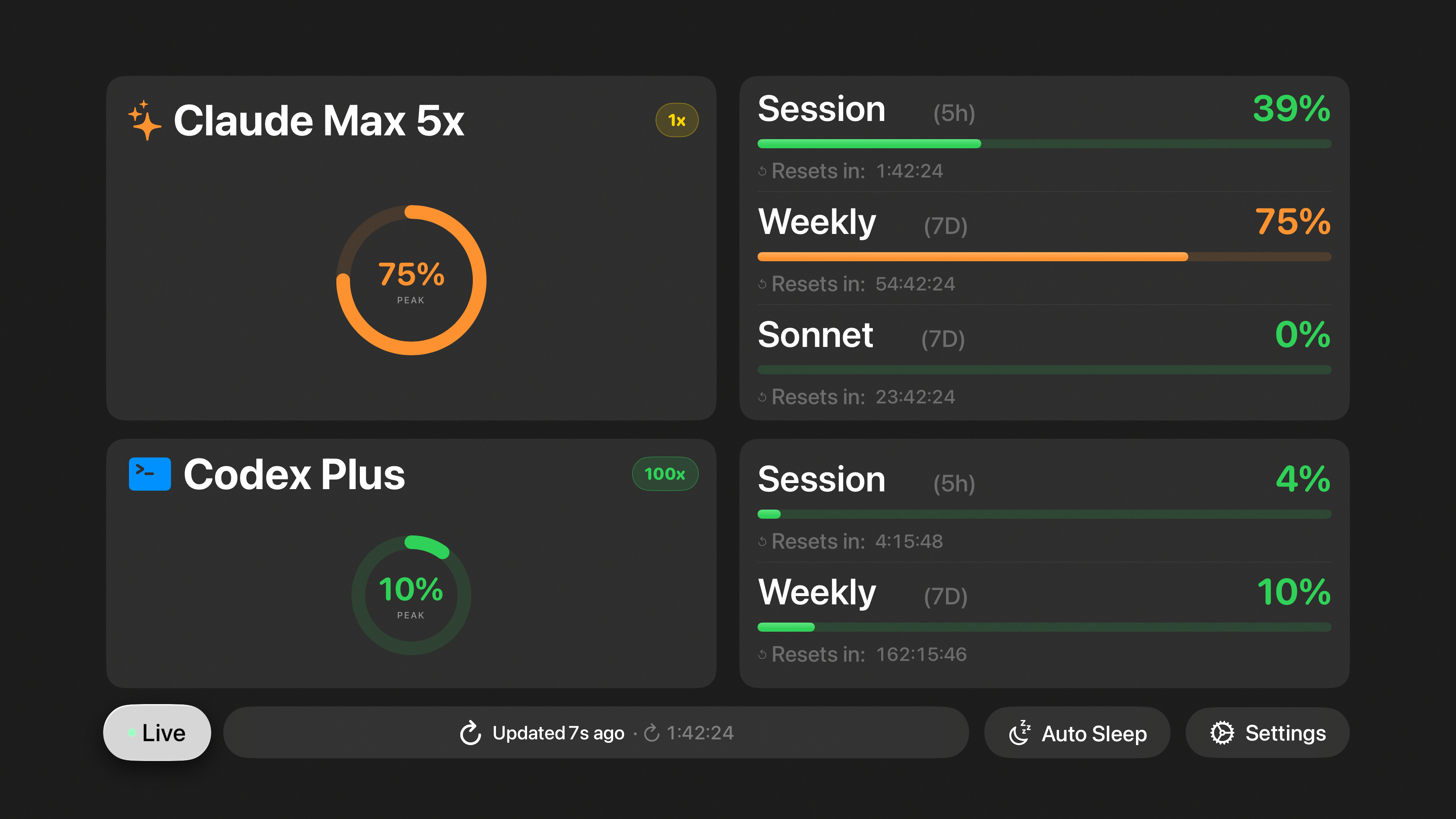
All tvOS screenshots.
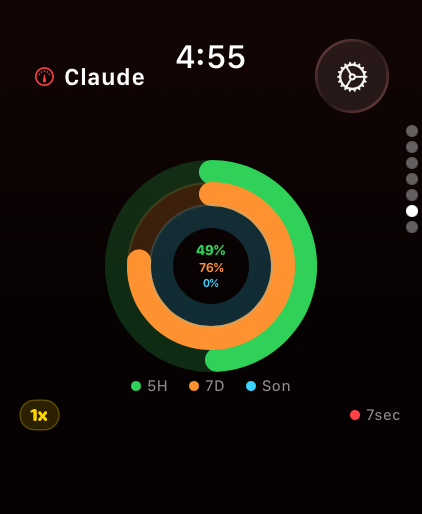
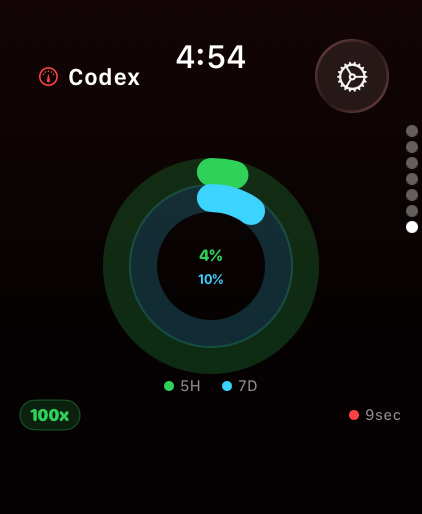
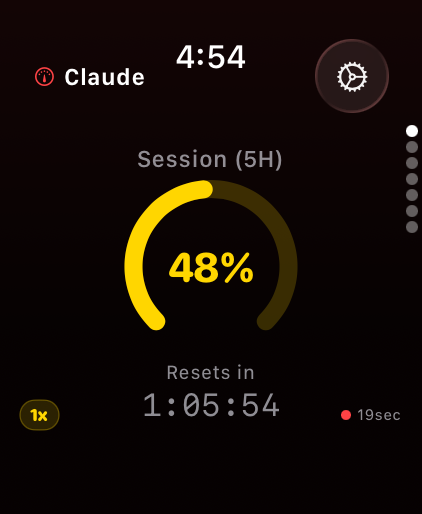
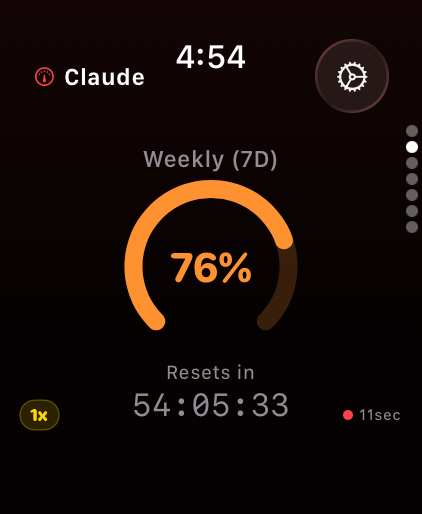
All watchOS screenshots.
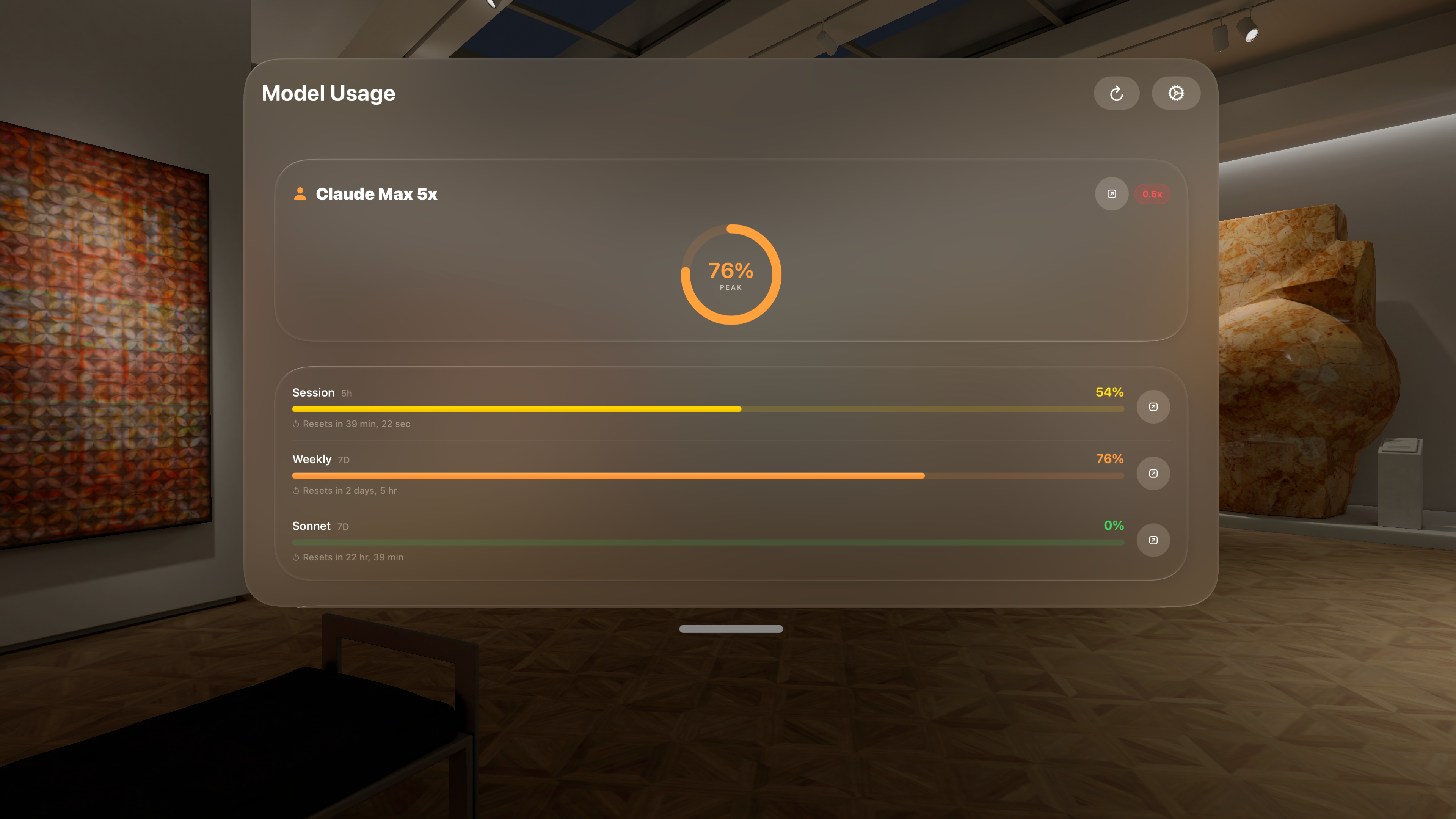
All visionOS screenshots.
Capabilities

Everything you need to stay ahead of rate limits.

Live Activity

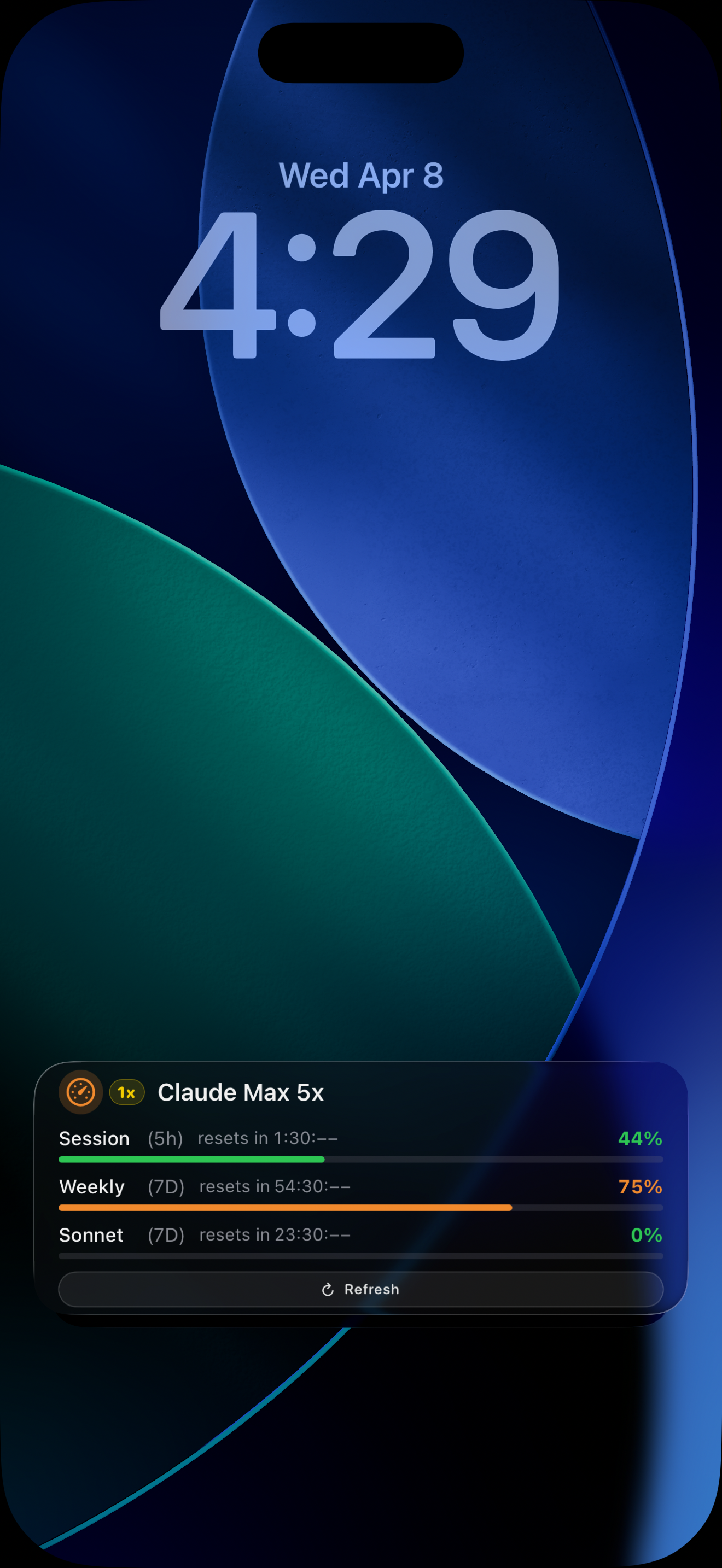
Always-on usage display on your iPhone lock screen and Dynamic Island. Updates in real-time as you use Claude.

Home Screen Widgets

Lock screen and home screen widgets for iOS, iPadOS, and macOS. See your usage at a glance without opening the app.

Every Apple Device

Native apps for iPhone, iPad, Mac, Apple Watch, Apple TV, and Vision Pro. Your usage data follows you everywhere.

Real-Time Sync

Lightweight client reads your local Claude data and pushes updates to all your devices via APNS. No scraping, no API keys.

Get Started

Up and running in under a minute.

Full setup guide: https://modelusage.app/setup

1

Install the client on your computer

On macOS or Linux, run the one-command installer from the machine that has your Claude/Codex local files. It saves the script to ~/.modelusage-client and prompts to install a background service.

Terminal
curl https://modelusage.app/install | bash
2

Copy your Pair Code

The setup prints a short Pair Code (recommended) plus a fallback full URL.

Terminal
# Example output:
Pair Code:          J7KD-3QNP
Fallback URL:       https://modelusage.app/u/.../r/...
3

Connect your Apple devices

Open Model Usage on iPhone, iPad, Mac, Apple TV, Apple Watch, or Vision Pro. Enter Pair Code in the app setup field.

Terminal
# App field accepts:
J7KD-3QNP
# or fallback URL
https://modelusage.app/u/.../r/...
4

Optional: run in background + mint fresh codes

Install as a background service, mint one-time Pair Codes, or generate a reusable App Review code.

Terminal
~/.modelusage-client/claude-usage-client.sh --install
~/.modelusage-client/claude-usage-client.sh --pair-code
tail -f ~/.claude_usage_tracker/client.log

Uninstall

1

Remove the background service

Terminal
~/.modelusage-client/claude-usage-client.sh --uninstall
2

Remove local data

Terminal
rm -rf ~/.claude_usage_tracker
rm -rf ~/.modelusage-client
1

Run the client on Windows

On the Windows machine with your local usage files, run the one-command PowerShell installer. It saves the script to %USERPROFILE%\\.modelusage-client and prompts to install a scheduled task.

PowerShell
iwr -useb https://modelusage.app/install.ps1 | iex
2

Copy your Pair Code

The script prints a short Pair Code plus fallback URL.

PowerShell
# Example output:
Pair Code:          J7KD-3QNP
Fallback URL:       https://modelusage.app/u/.../r/...
3

Connect your Apple devices

Open Model Usage on your Apple device and enter the Pair Code.

PowerShell
# App field accepts:
J7KD-3QNP
# or fallback URL
https://modelusage.app/u/.../r/...
4

Optional: run in background + mint fresh codes

Install as scheduled task and generate Pair Codes or reusable App Review codes when needed.

PowerShell
powershell -ExecutionPolicy Bypass -File "$env:USERPROFILE\.modelusage-client\claude-usage-client.ps1" -Install
powershell -ExecutionPolicy Bypass -File "$env:USERPROFILE\.modelusage-client\claude-usage-client.ps1" -PairCode
powershell -ExecutionPolicy Bypass -File "$env:USERPROFILE\.modelusage-client\claude-usage-client.ps1" -ReviewCode
Get-Content -Wait ~\.claude_usage_tracker\client.log

Uninstall

1

Remove the scheduled task

PowerShell
powershell -ExecutionPolicy Bypass -File "$env:USERPROFILE\.modelusage-client\claude-usage-client.ps1" -Uninstall
2

Remove local data

PowerShell
Remove-Item -Recurse -Force ~\.claude_usage_tracker
Remove-Item -Recurse -Force ~\.modelusage-client